

Logging Into NSB Business Online Banking for First Time?
Welcome! To prepare you for your first-time login, you will need the following:
Your Existing eCorp Username
Your Downloaded VIP Access Symantec/Verisign Token (this is on either your mobile device or desktop/laptop)
Note: You will not use your eCorp Hard Token.
To login, please follow the steps below. If you need assistance with logging in or have any questions, please call NSB’s Customer Care Center at 1-888-725-2207 and ask for a member of the eServices or Cash Management teams.
Step #1
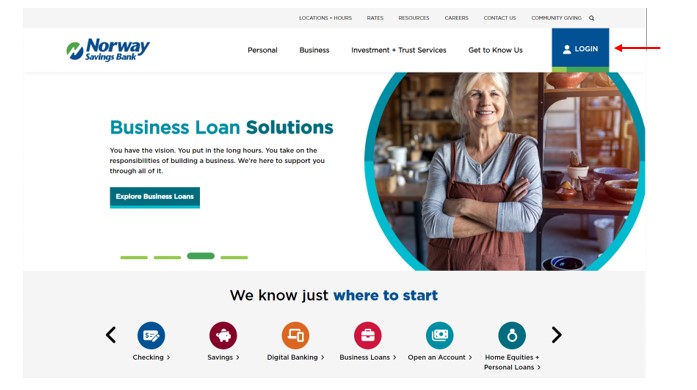
From the Norway Savings Bank’s website homepage, select “Login” in the upper right corner (screenshot below).
Step #2
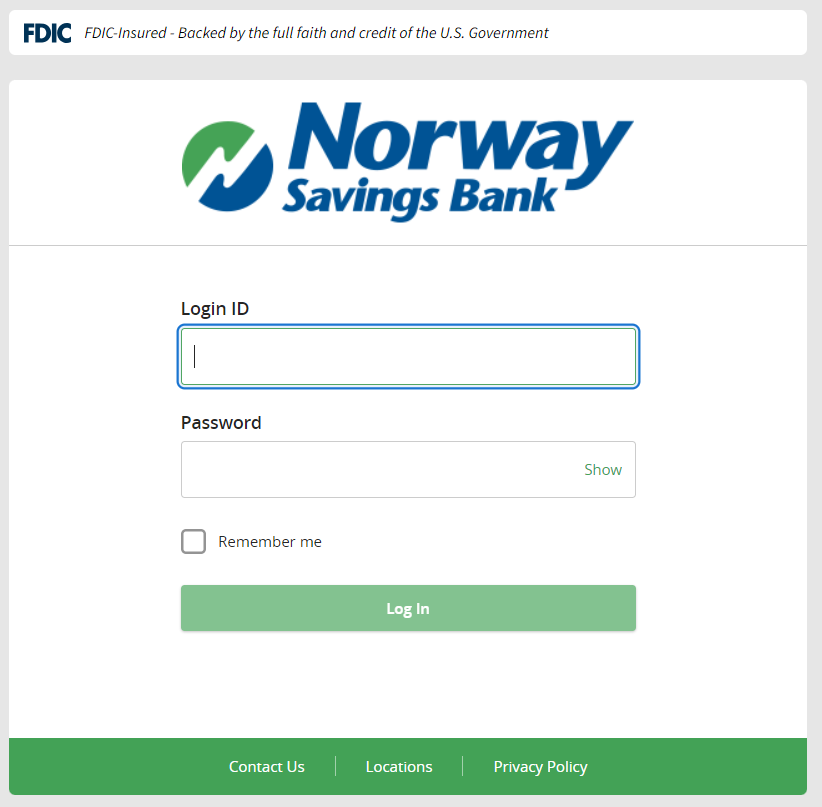
To login (screenshot below):
a. Login ID — Enter your existing eCorp Username.
b. Password — Enter your first initial, last name, and four-digit eCorp PIN (example: Sally Jones who has an eCorp PIN of 1234 would enter SJones1234).
c. Select the green Login button.
Step #3
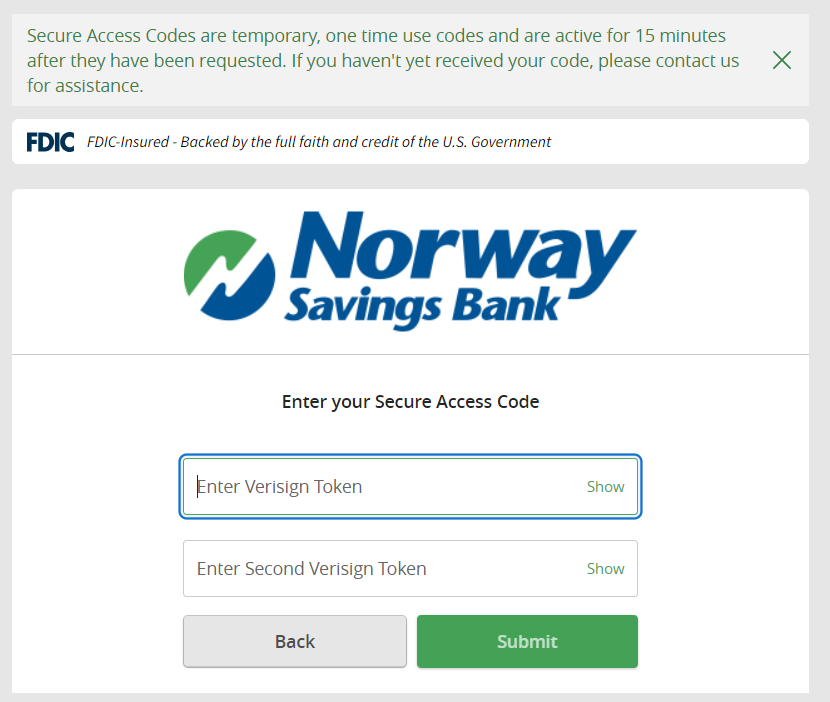
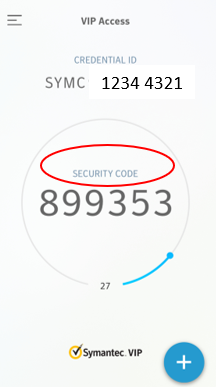
Enter your secure access code by using your NEW downloaded VIP Access Symantec/Verisign Token that you downloaded to either your mobile device or desktop/laptop (screenshot below).
a. Enter Verisign Token — Enter your six-digit security code.
b. Enter Second Verisign Token — Please allow your token to cycle through the approximately 30-second timeframe and enter the next six-digit security code that appears.
c. Select the green Submit button.
Step #4
You will then be asked to create a new password. Follow the instructions on password length and criteria that appear in the screenshot below.
a. Current Password — Enter your current password (first initial, last name, and four-digit eCorp PIN).
b. New Password — Create a new password that follows the password requirements.
c. Confirm New Password — Re-enter the new password you created.
d. Submit — Select the green Submit button.

CONGRATULATIONS AND WELCOME TO THE NEW HOMEPAGE OF NSB BUSINESS ONLINE BANKING!
Viewing Your Accounts
To view your accounts, select “View all accounts” shown in the screenshot below.
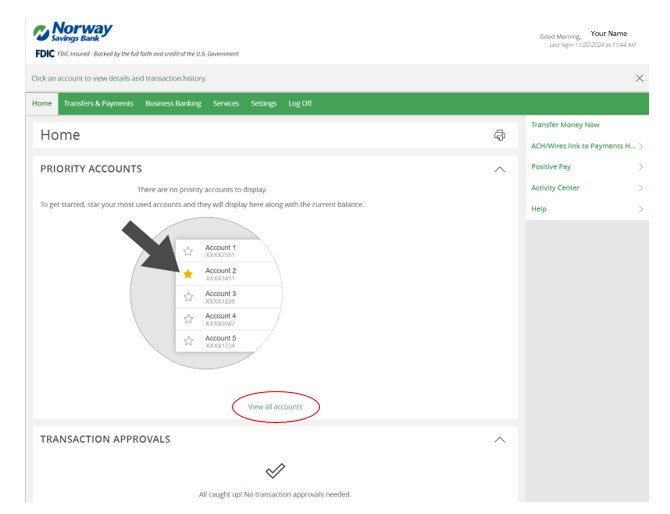
Select the star next to the accounts you want to appear on the homepage (see below).
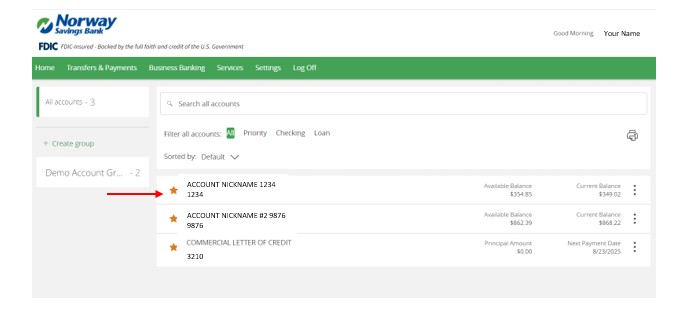
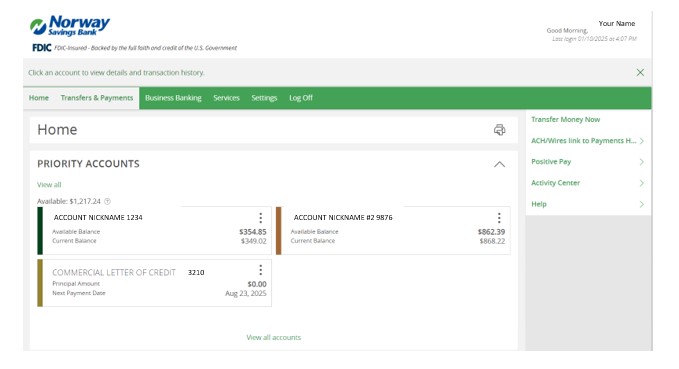
The stars next to the accounts you set as a priority appear filled in and your priority accounts will now display as tiles on the homepage (see below).
If you need assistance with logging in or have any questions, please call NSB’s Customer Care Center at 1-888-725-2207 and ask for a member of the eServices or Cash Management teams.
